How to connect Second screen (phone, tablet, laptop) to Hinty Voice Assistant
A second phone, tablet or laptop next to you shows the hint in big letters. Handy for video calls.
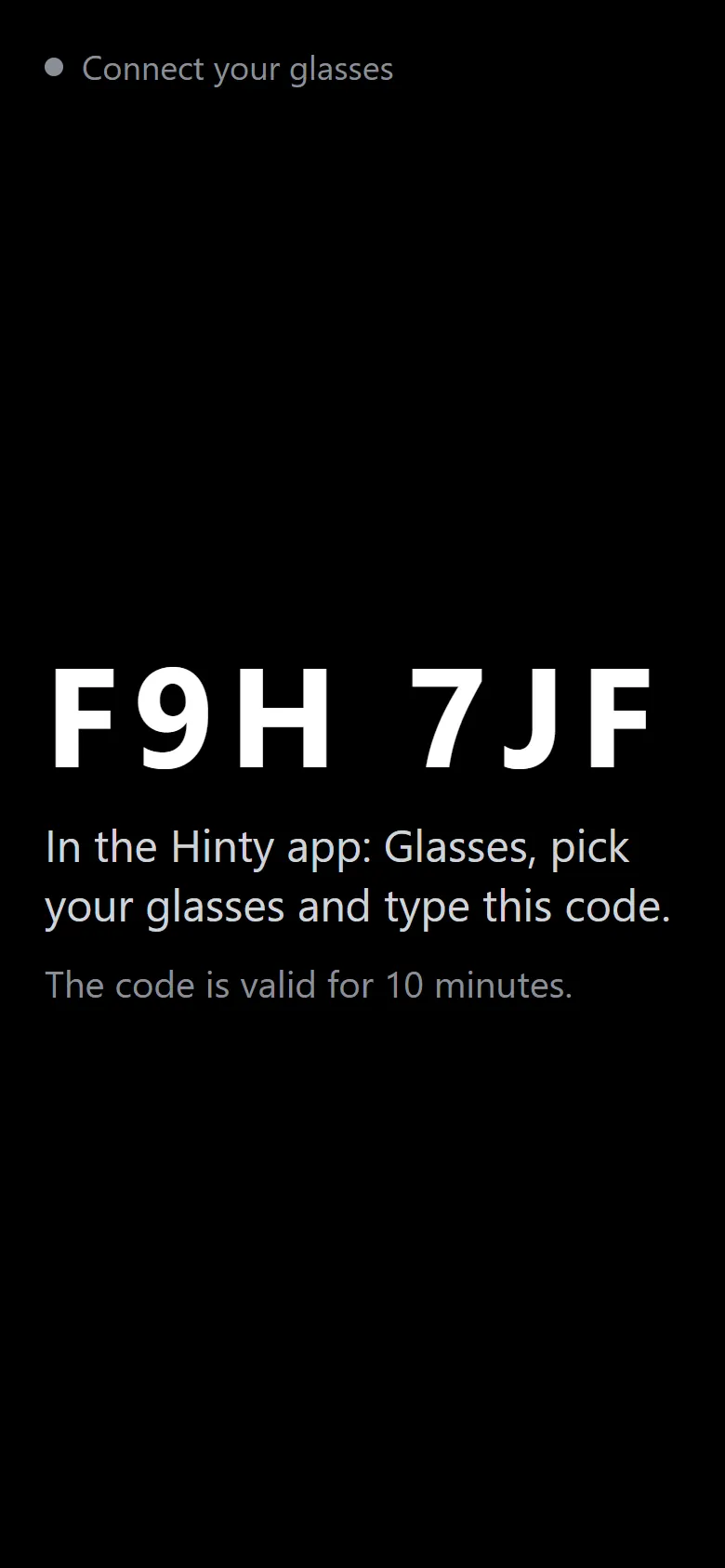
01On the second phone, tablet or laptop open hinty.eu/g in the browser. A 6-character code appears.
All steps
- 01On the glasses
On the second phone, tablet or laptop open hinty.eu/g in the browser. A 6-character code appears.
- 02Hinty app
Open the Hinty app and tap “Glasses” on the Start screen.
- 03Hinty app
Pick Other glasses and screens, then Second screen.
- 04Hinty app
Type the code from the glasses into “Code from the glasses” and tap “Connect glasses”.
- 05On the glasses
The glasses show “Connected”. Hints from every conversation now appear there.
- 06Hinty app
Tap “Send a test hint”.
- 07On the glasses
The hint on the second screen, in big letters.
- 08Hinty app
Tap “Use these glasses”. From now on every conversation uses these glasses.
Other glasses
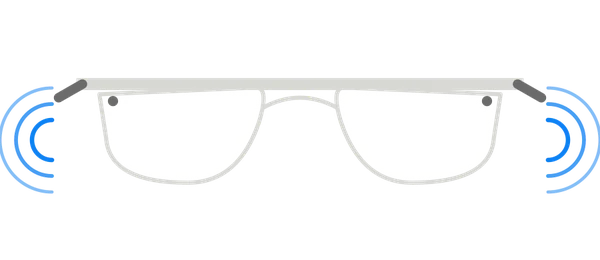 Ray-Ban MetaHint in your ear
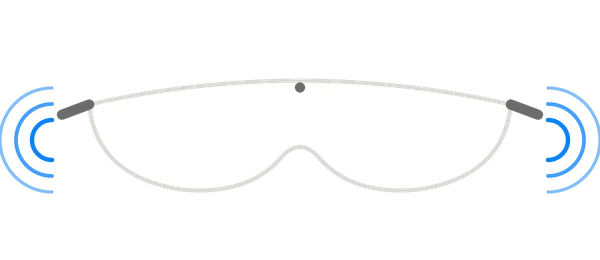 Oakley MetaHint in your ear
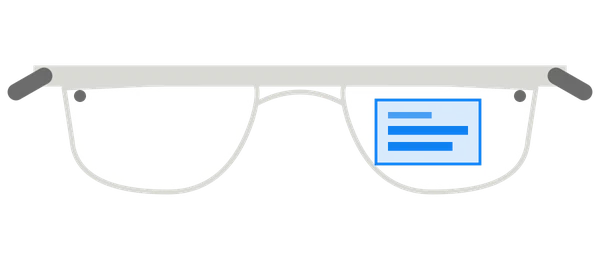 Meta Ray-Ban DisplayText in the lens, code pairing
 Rokid GlassesText in the lens
 Even Realities G2Text in the lens, code pairingSoon
 Vuzix Z100Text in the lens
 XREAL · VITURE · RayNeo AirText on the glasses screen
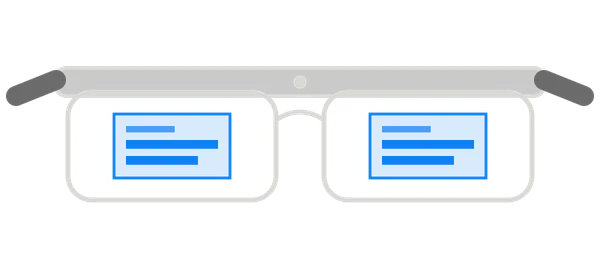 RayNeo X3 Pro · INMO Air3Text in the lens, code pairing
 Audio glasses or Bluetooth headsetHint in your ear
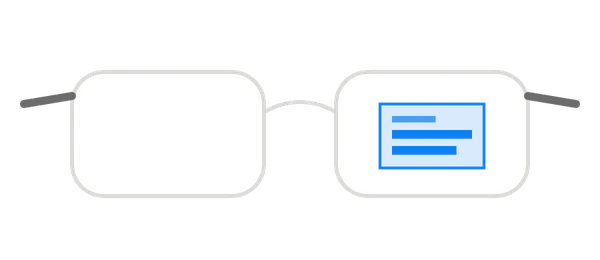 Glasses with notificationsText as a notification
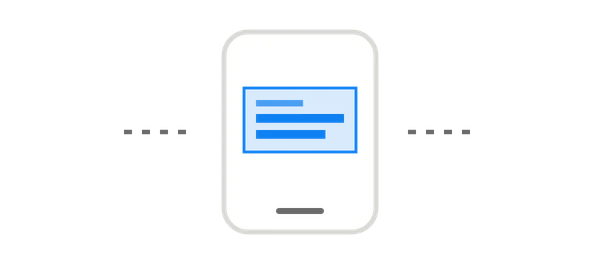 Chrome extension and web panelText in the lens, code pairing
Ray-Ban, Oakley, Meta, Rokid, Even Realities, Vuzix, XREAL, VITURE, RayNeo and INMO are trademarks of their owners. Hinty is not affiliated with these companies. Screenshots of their apps come from their public help pages and app store listings; the names are used only to show compatibility.